If you see this article, this means you are invited to use Hyra as a HR Member. Here's how to get you up to speed with everything.
What is a HR Member?
In Hyra, users are generally divided into three groups: Staff Member, HR Member and Administrator. HR Members are usually the staff members that interact with Hyra the most as their role requires them to log any infraction to someone's logbook, approving/denying inactive notices, monitoring staff's performance and more.
Most of your work will be made in the Staff Tab. This is the tab that shows:
-
Dashboard: This is your homepage where it shows which staff members are in-game, how many got their assignments completed and more.
-
Time Off Tab: This is the section where you approve/deny time off requests sent by your staff members.
-
Timesheets: This is the section where it will show how long does everyone work and allows you to make changes if needed (and have the permission.)
-
Team Views: A way to group staff members and show their statistics in a easy way.
-
Personal Views: Similar to Views however it is only accessible by you.
This article will help you get onboarded as an HR Member. Here are some steps to follow:
Step 1: Create Personal Views
Let us start off by creating your personal views. Especially if you are managing a team of staff members, you'll need to create a personal view. This is also a good exercise to help you get accustomed to the different feature of each view.
-
Click the + (Plus button) beside "Personal Views"
-
Give it a name.
-
Select whether you want to view data in a grid or card view. (This can be changed later)
If you want to view staff data in a spreadsheet-like, choose table view.
If you want to view staff data per-person, choose card view. -
Select a colour and an icon (This cannot be changed)
-
Hit Save.
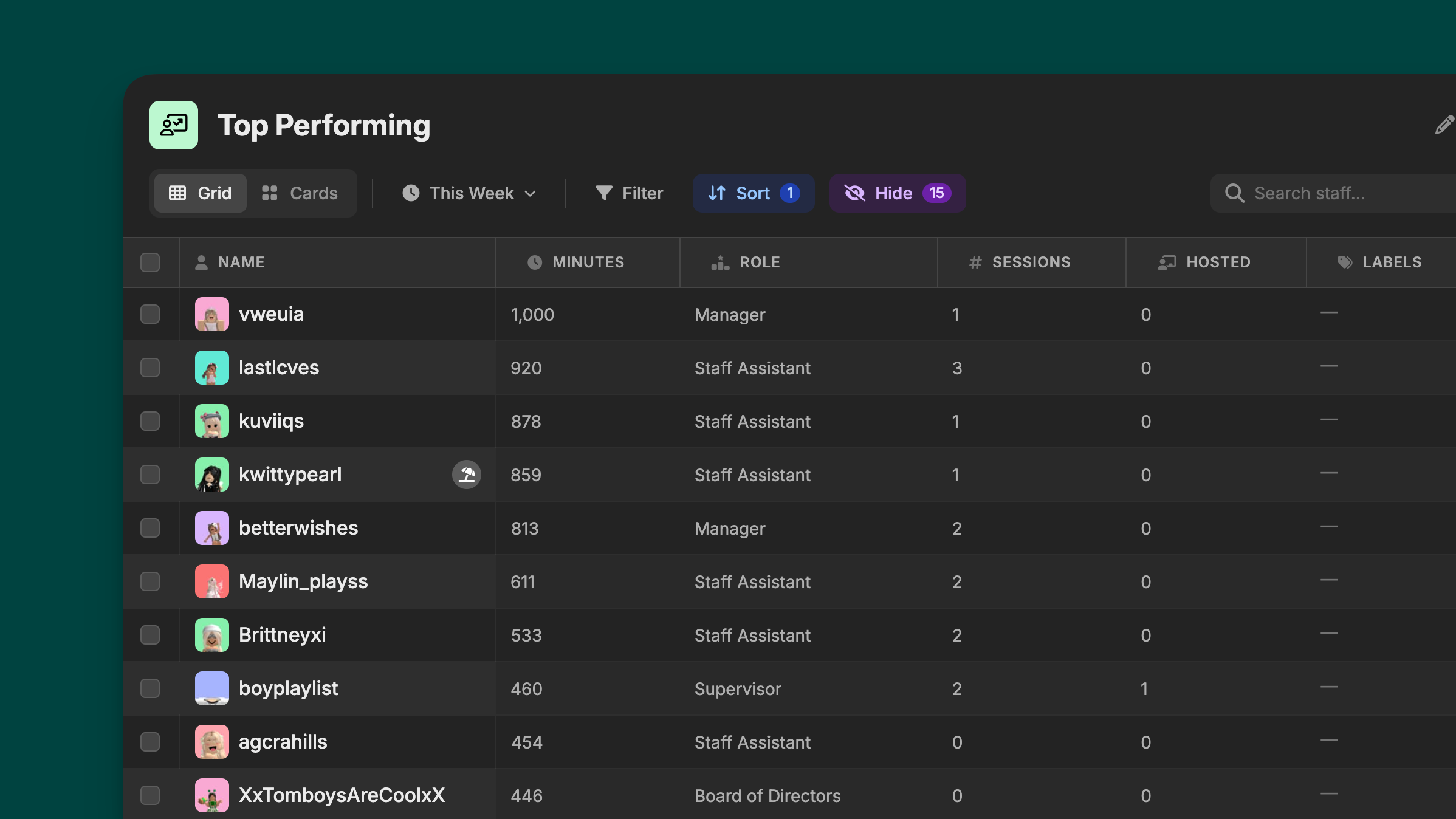
Once done, you are now able to view everyone's statistics. Here are the tools that you'll need to make your view even powerful!
-
Grid/Cards: This allows you to toggle data between grid or cards.
-
Data Range: This allows you to view data from a certain range. (ex: For a weekly monitoring, choose "Last 7 days.")
-
Filters: This allows you to filter your staff members that doesn’t fit any of the requirements you’ve set.
-
Sort: This allows you to sort your staff members based on your criteria.
-
Hide Columns: This allows you to hide unnecessary columns that you might not need.
-
Search Staff Members: This allows you to search for someone using the search bar.
Above the search bar, you'll also see a few icons. These are:
-
Edit View (✏️): Allows you to rename your view.
-
Duplicate View (📄): Allows you to duplicate a view with it's settings.
-
Export to CSV (download button): Allows you to save the data in a .csv format.
-
Delete View (🗑️): This will delete your view.
Step 2: Head into someone's Directory Profile
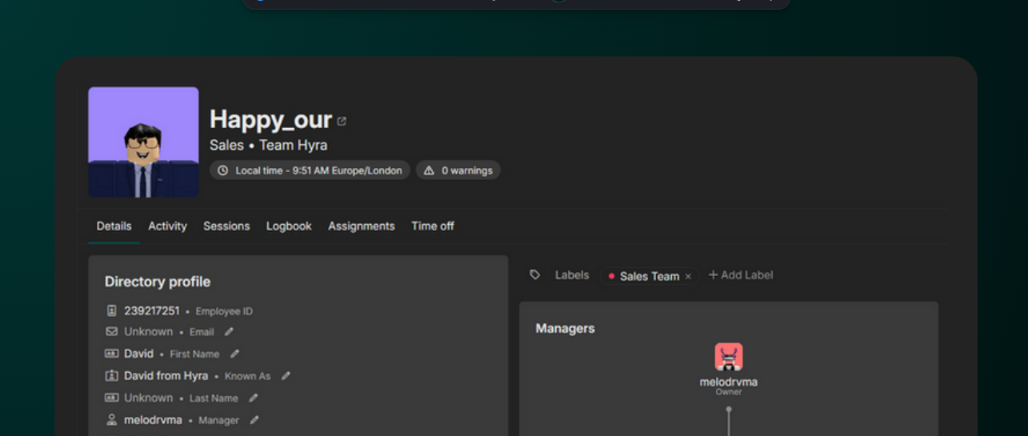
Directory Profile is a staff member's datasheet. This is where a few key information regarding a staff member is stored. There are different tabs under this profile, these are:
-
Details: This shows you the Directory Profile of a staff member.
-
Activity: This lists out the minutes that the staff member has worked and allows you to make changes to it (if you have the necessary permissions.)
-
Sessions: This lists out the sessions that your staff member has joined. It also shows which role is your staff member prefers.
-
Logbook: This shows the logbook of your staff member. All infractions, notes, username changes are recorded here.
-
Assignments: This lists out the assignments (current and historical) regarding the staff member.
-
Time off: This lists out the times that the staff member requests for time off and its reasons.
Step 3: Go to Timesheets
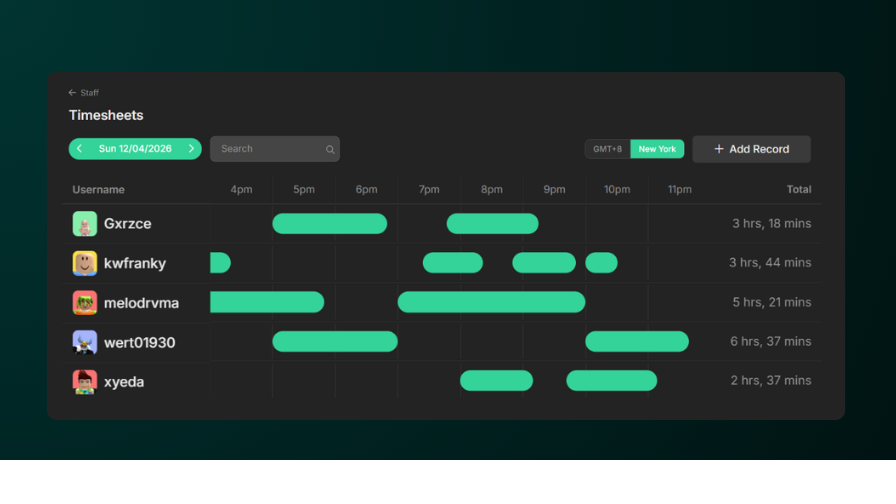
Timesheets is a feature in Hyra that allows you to visualize when did your staff member worked for the day. If you have the necessary permissions, you are also able to edit their shift. (Case if they accidentally forgot to Punch Out).
This section is also a helpful metric to understand at which times is your staff members commonly active.
Step 4: Go to Knowledge Tab
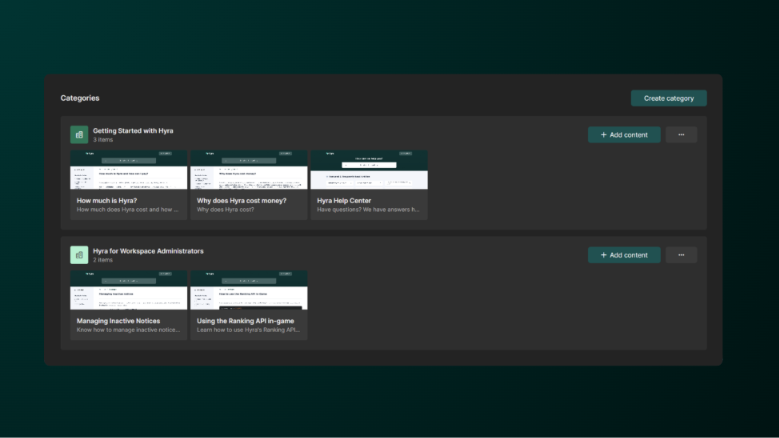
If enabled, go to your Knowledge Tab. Sometimes there are documents that are locked by a certain role (in this case the HR). This is why it is also a good habit to view the Knowledge Tab just in case there's a new resource that is made available for you.
Guides and References
In this help center, you can proceed to HR Guide. It contains the guides that you'll need when using a feature in the Staff tab.
We hope you'll be able to use Hyra to the fullest. :)
Team Hyra