Directory Profile on Hyra are how workspace admins can view information about each of their employees. Their purpose is to serve each community with the best possible staff management to quickly and effectively take charge.
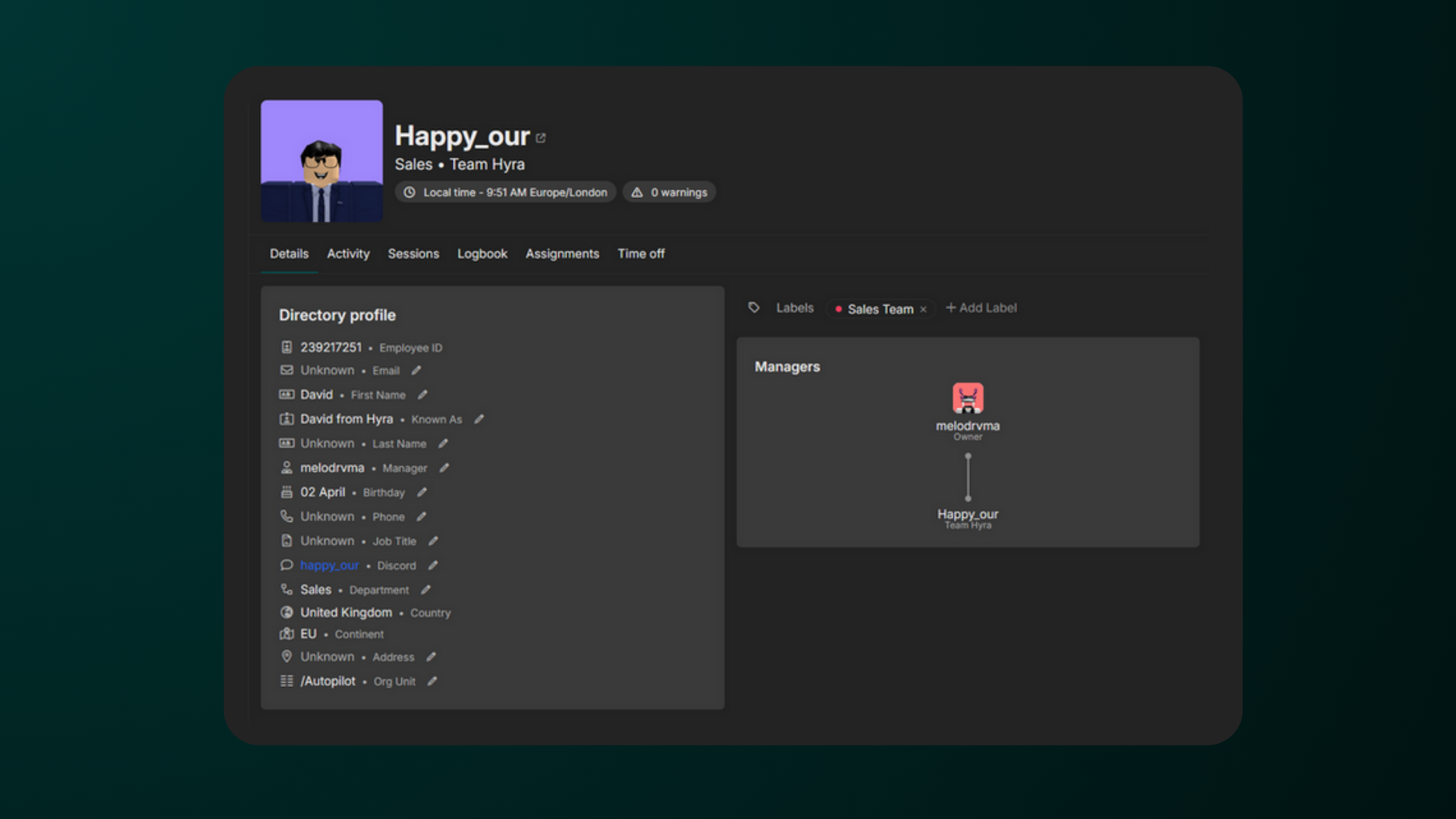
Directory Profile
To view the profile of someone, firstly, go to Activity. In Activity, you can search the staff for their Directory Profile. There’s two ways on searching the staff:
-
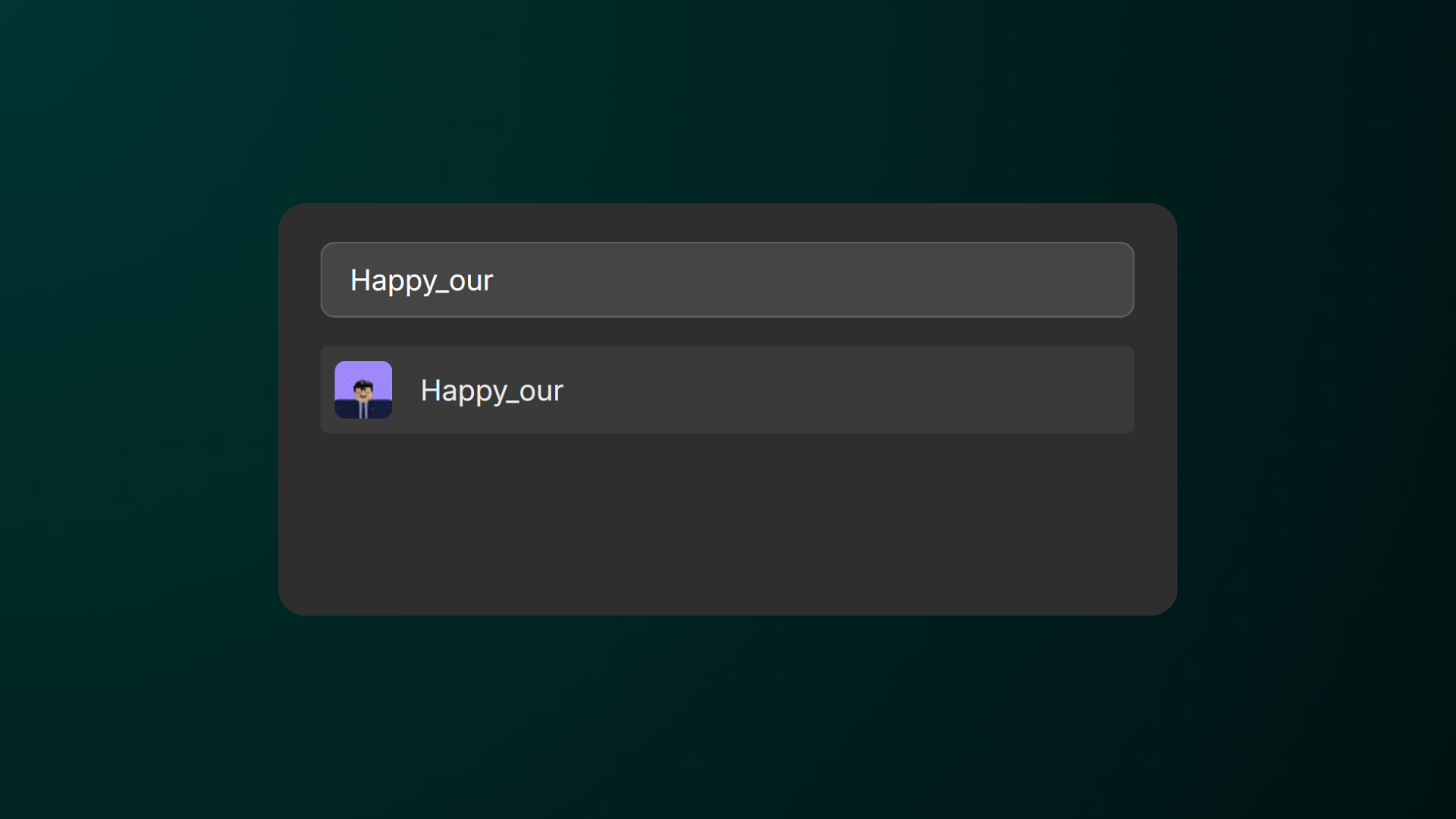
You can search the user by clicking Ctrl + K (For Windows) or Cmd + K (for Mac) and typing their username in Search.
-
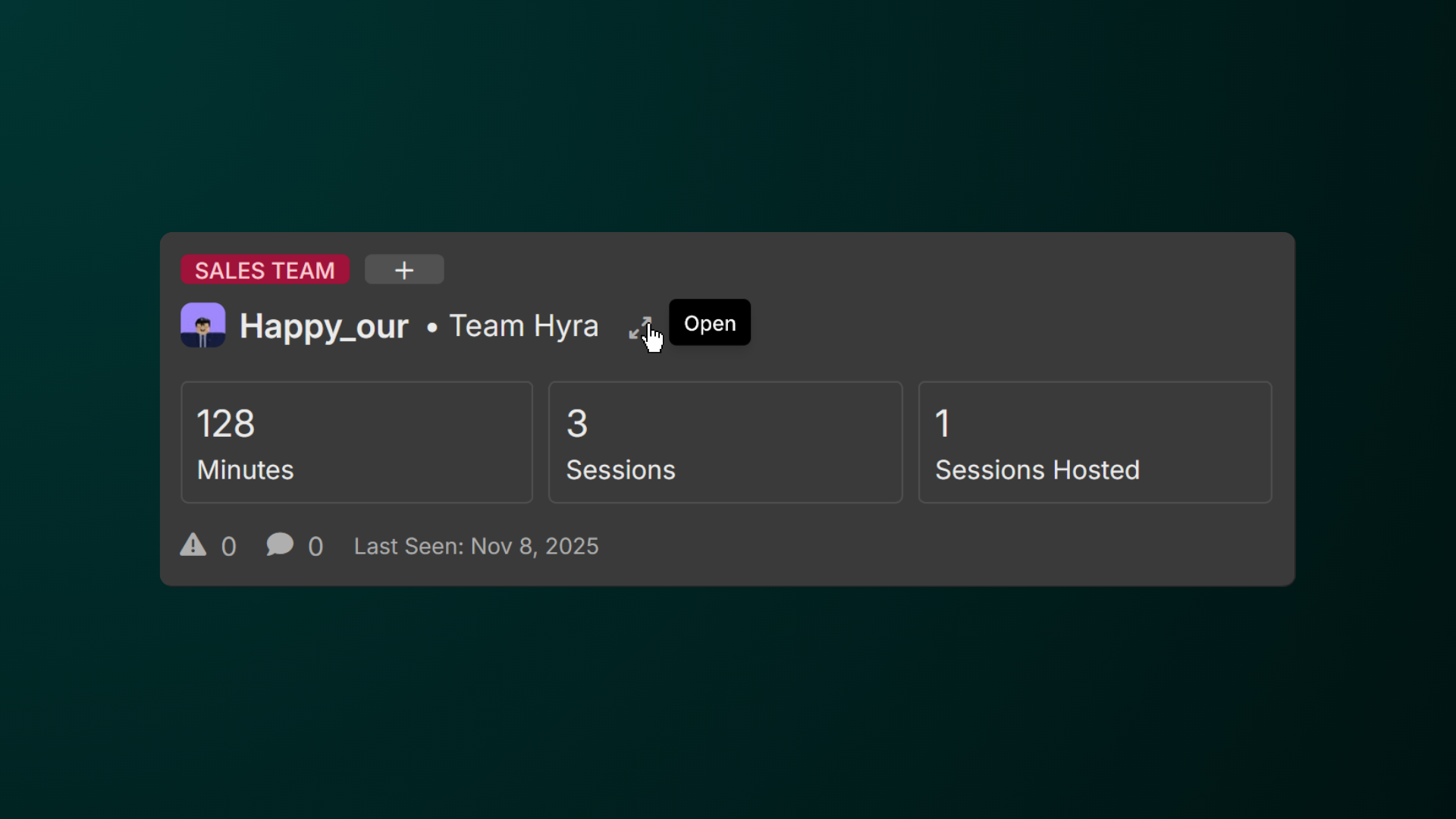
You can also find them Views and hit the Open button.
Editing Directory Profile
ℹ️ You'll need the permission Edit Staff Details to do this.
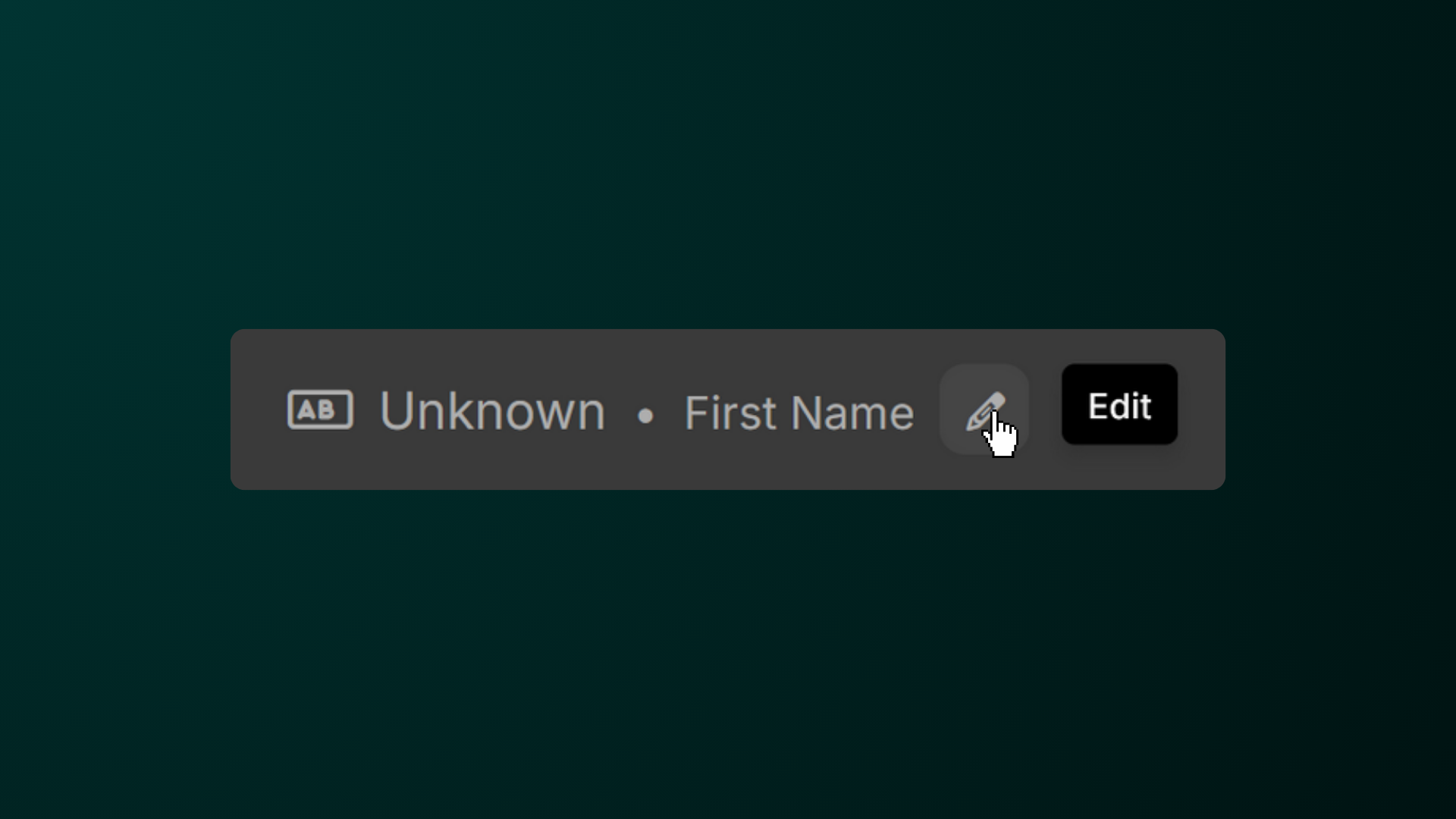
To edit a property in a staff’s directory profile, go to the staff’s directory profile and beside the property, you can hit the pencil icon to edit.
Activity Tab
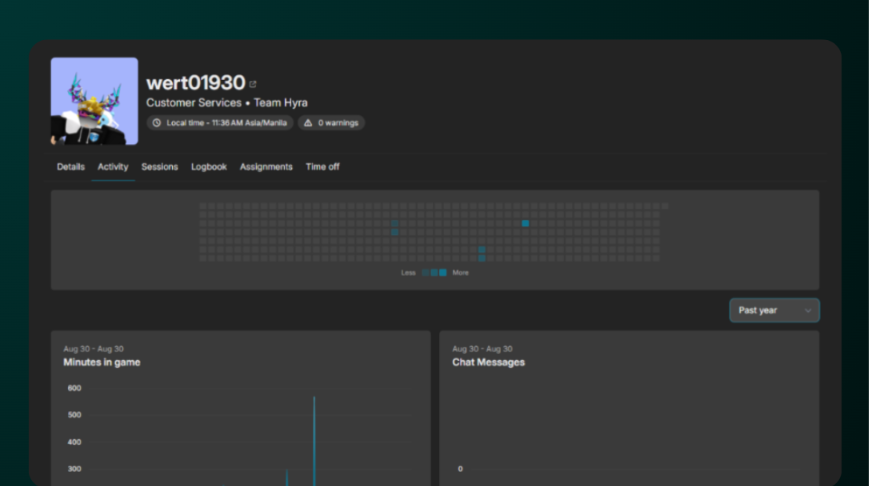
The activity section shows up the shifts that is recorded in Hyra.
Adding/Removing Minutes
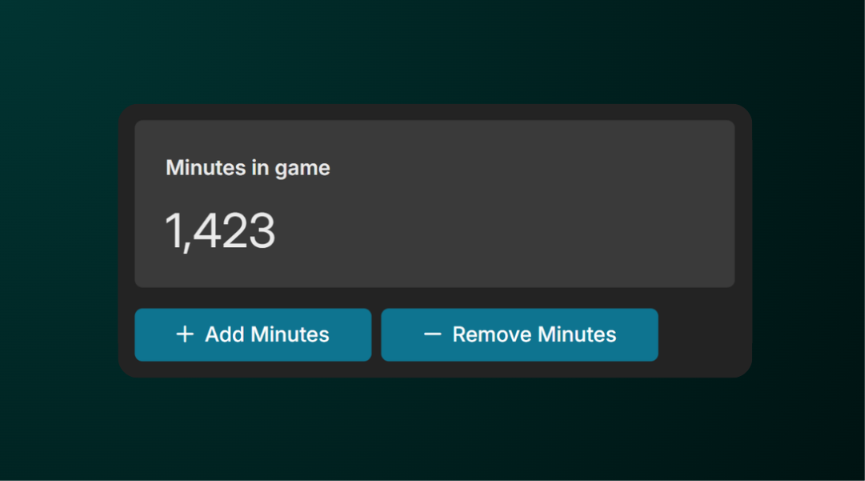
For staff members with elevated permissions (Add/Remove Minutes on Staff), they are able to manually add/remove minutes by clicking 'Add Minutes' or 'Remove Minutes'
Sessions
The sessions tab lists out all of the sessions that a staff member has been apart of.
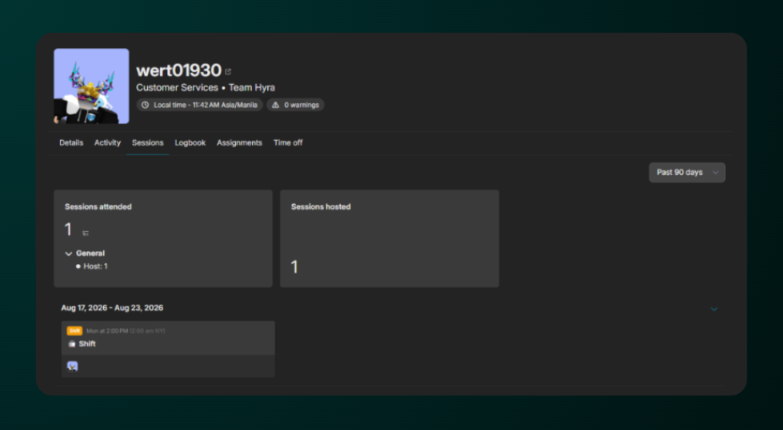
In this page, you can also drill down which roles the staff member commonly select by simply clicking the "Drilldown" button beside "Sessions attended"
Logbook
Logbook allows you to log all of the actions taken to the staff. From warnings, promotions, demotions, even username changes.
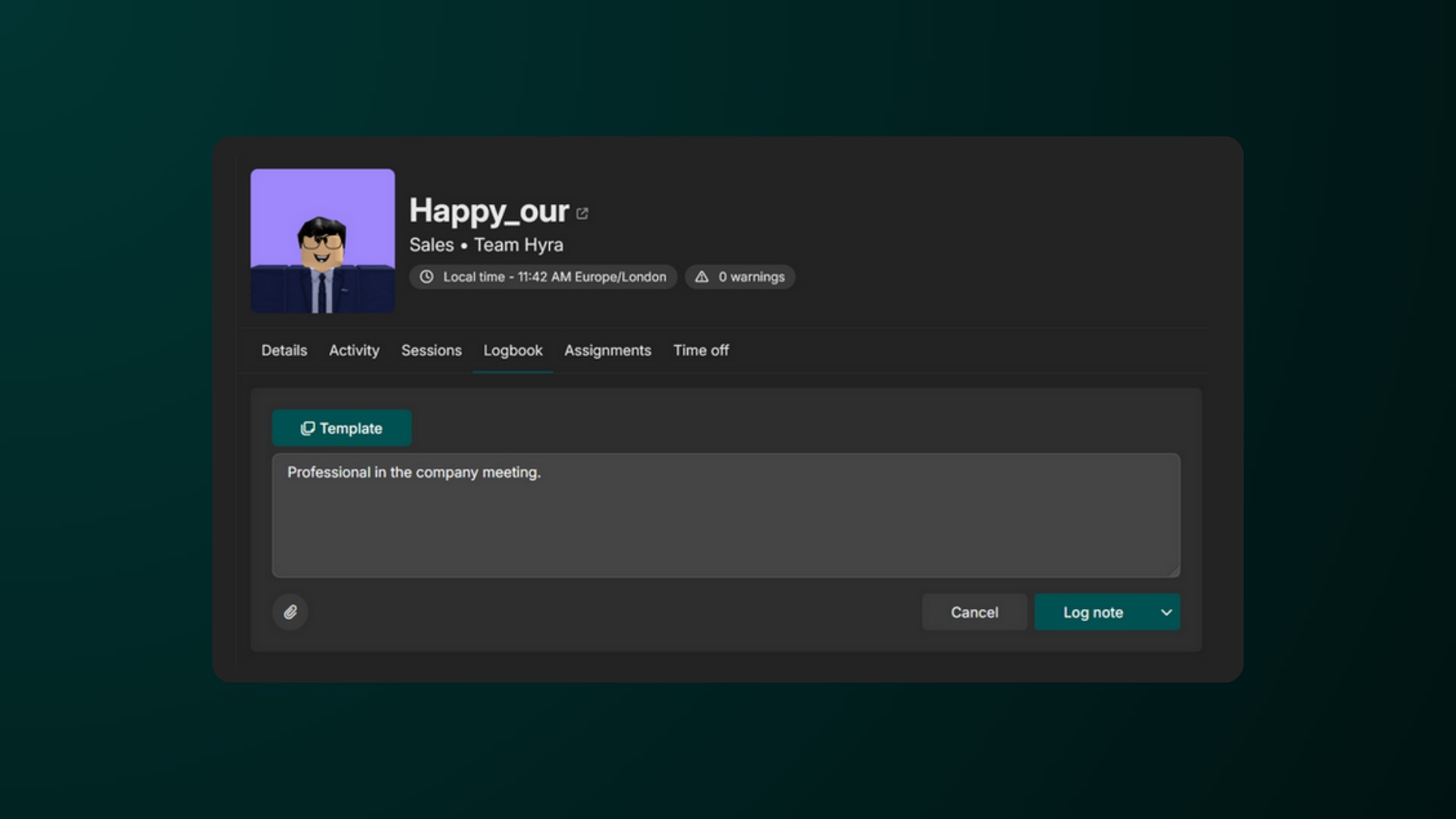
The Logbook guide is moved in a different article under the HR Guide collection.
Assignments
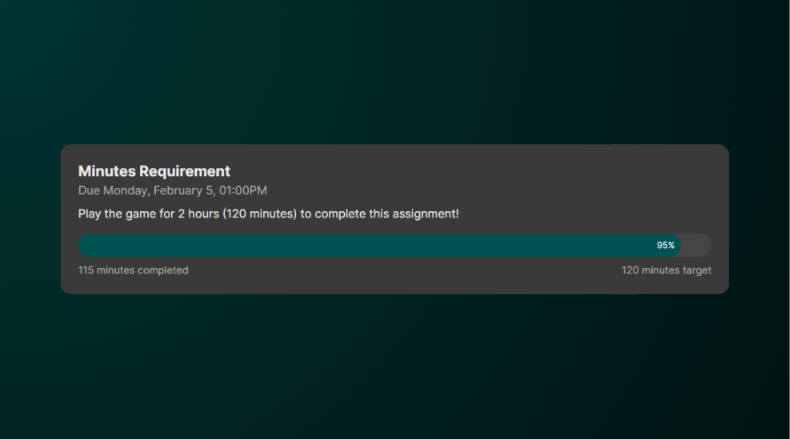
The Assignments tab shows the assignments that has been assigned to the staff member and it's status.
-
Red: Failed Assignments
-
Green: Passed Assignments
-
Purple: Assignments where the staff ember is currently in time off.
Time Off
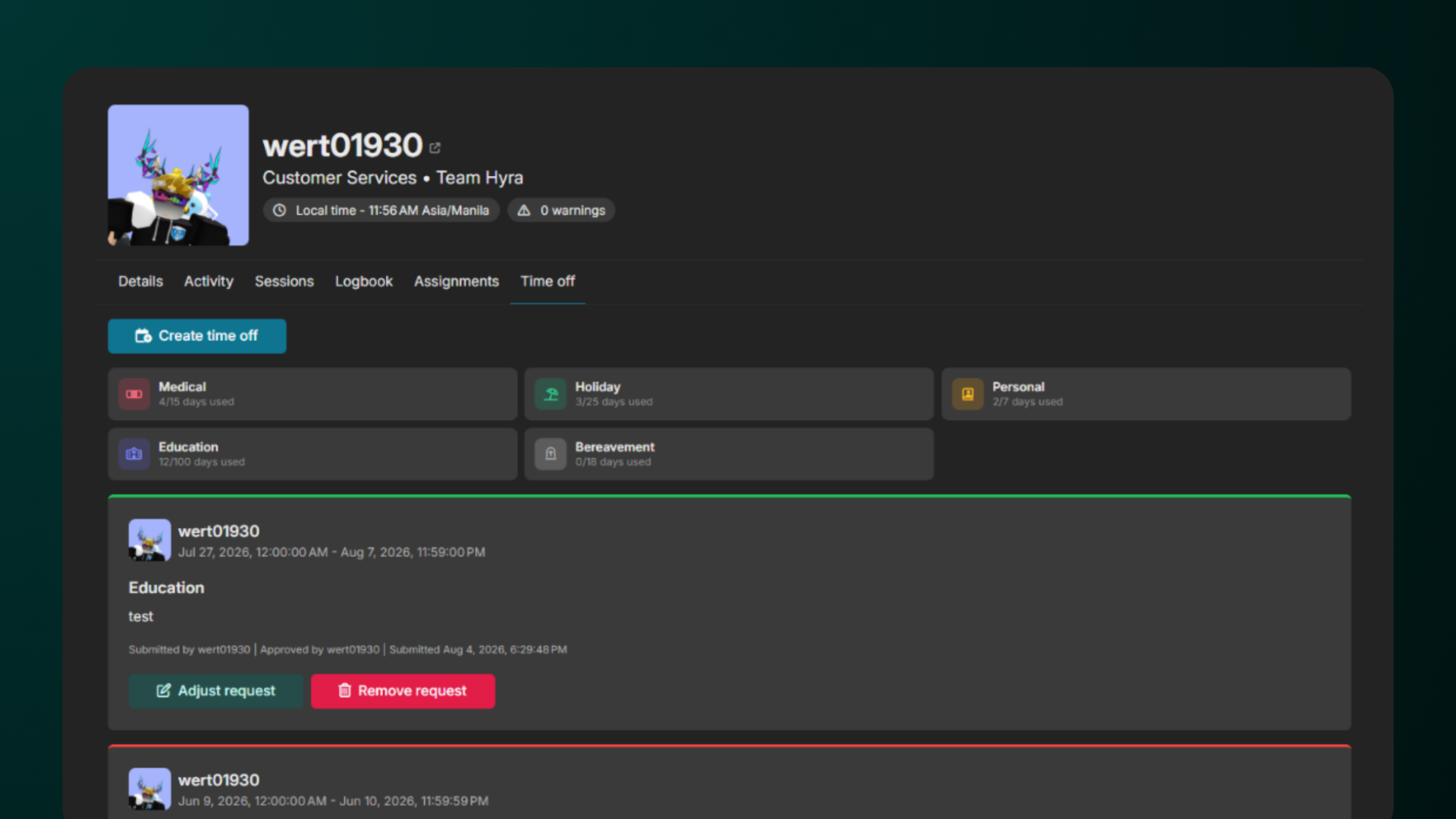
The Time Off section shows up the inactivity notices that a staff member requested.
-
If your workspace enabled Time Off Policies, it will show how many days did the staff member used for that particular category.
-
If a staff member's reason is sensitive, it will be automatically redacted for privacy purposes. You'll need to contact support if you would like to know.
-
For those who have Manage Time off Requests, you are able to create a time off for the staff member, adjust their request (extend/shorten) or even remove the request.
.png)